

Managed namespaces for Azure DevOps
You need to add an Azure organization or a project to an Endor Labs namespace. Organizations and projects in Azure DevOps are mapped as managed namespaces in Endor Labs. Managed namespaces have the following restrictions:- You cannot delete managed namespaces.
- You cannot delete repos present within managed namespaces.
- You cannot add projects or create namespaces within managed namespaces.
- You cannot create any new Endor Labs App installation within the managed namespaces.
Namespace structure when you add an Azure organization
When you add an Azure organization to an Endor Labs namespace, Endor Labs creates a child namespace for the organization and creates child namespaces for each project in the organization under the organization namespace. The organization namespace and project namespaces are managed namespaces. You can add multiple projects to the same Endor Labs namespace. Each project will have its own managed namespace. If your organization name isdeerinc and you have three projects, buck, doe, and fawn, Endor Labs creates four managed namespaces: deerinc, buck, doe, and fawn. The namespaces buck, doe, and fawn are child namespaces of the deerinc namespace.
The following image shows the namespace structure in Endor Labs.
Namespace structure when you add an Azure DevOps project
When you add an Azure DevOps project to an Endor Labs namespace, Endor Labs creates a child namespace for the Azure DevOps project and maps all repositories in that project to this namespace. The child namespace that maps to the Azure DevOps project is a managed namespace. The managed namespace has the name,<organization name>-<project name>. For example, if your organization name is deerinc and project name is doe, the managed namespace will have the name, deerinc-doe.
You can add multiple projects to the same Endor Labs namespace. Each project will have its own managed namespace. For example, your organization name is deerinc, which has three projects, buck,doe, andfawn. You add each project to the Endor Labs namespace, endor-azure.
The following image shows the namespace structure in Endor Labs.
To run CLI scans for a repository that is already scanned by the Endor Labs Azure DevOps App, specify the correct managed child namespace using the -n argument to prevent creating duplicate projects.
Default branch detection
When Endor Labs scans a repository for the first time, it detects the default branch of the repository. The findings that are created in the scan are associated with the default branch.Changing the default branch
When you change the default branch in your source control system (for example, frommain to dev):
- Endor Labs automatically detects the new default branch and sets that as the default reference
- The previous default branch becomes a reference branch
- Scans continue on the new default branch and the reference branch
Renaming the default branch
When you rename the default branch in your source control system:- Endor Labs automatically switches to the renamed branch
- Scans continue without disruption
Adding repository versions
When you add a new repository version (for example, adev branch), both the default branch and the new version are scanned by the Endor Labs App.
Control default branch detection
You can control the default branch detection by setting theENDOR_SCAN_TRACK_DEFAULT_BRANCH environment variable in a scan profile. You need to configure the project to use the scan profile. See Configure scan profiles for more information.
By default, the environment variable is set to true. When set to true, the default branch detection is enabled, and the first branch you scan is automatically considered as the default branch.
Prerequisites for Azure DevOps App
Ensure the following prerequisites are in place before you install the Endor Labs Azure DevOps App.- An Azure DevOps cloud account and organization. If you don’t have one, create one at Azure DevOps.
- Endor Labs Azure DevOps App requires read permissions to in your projects. You can grant these permissions by providing read access to the Code category when you create an Azure DevOps personal access token for Endor Labs.
Install the Azure DevOps App
To automatically scan repositories using the Azure DevOps App:- Sign in to Endor Labs.
- Select Projects from the left sidebar and click Add Project.
-
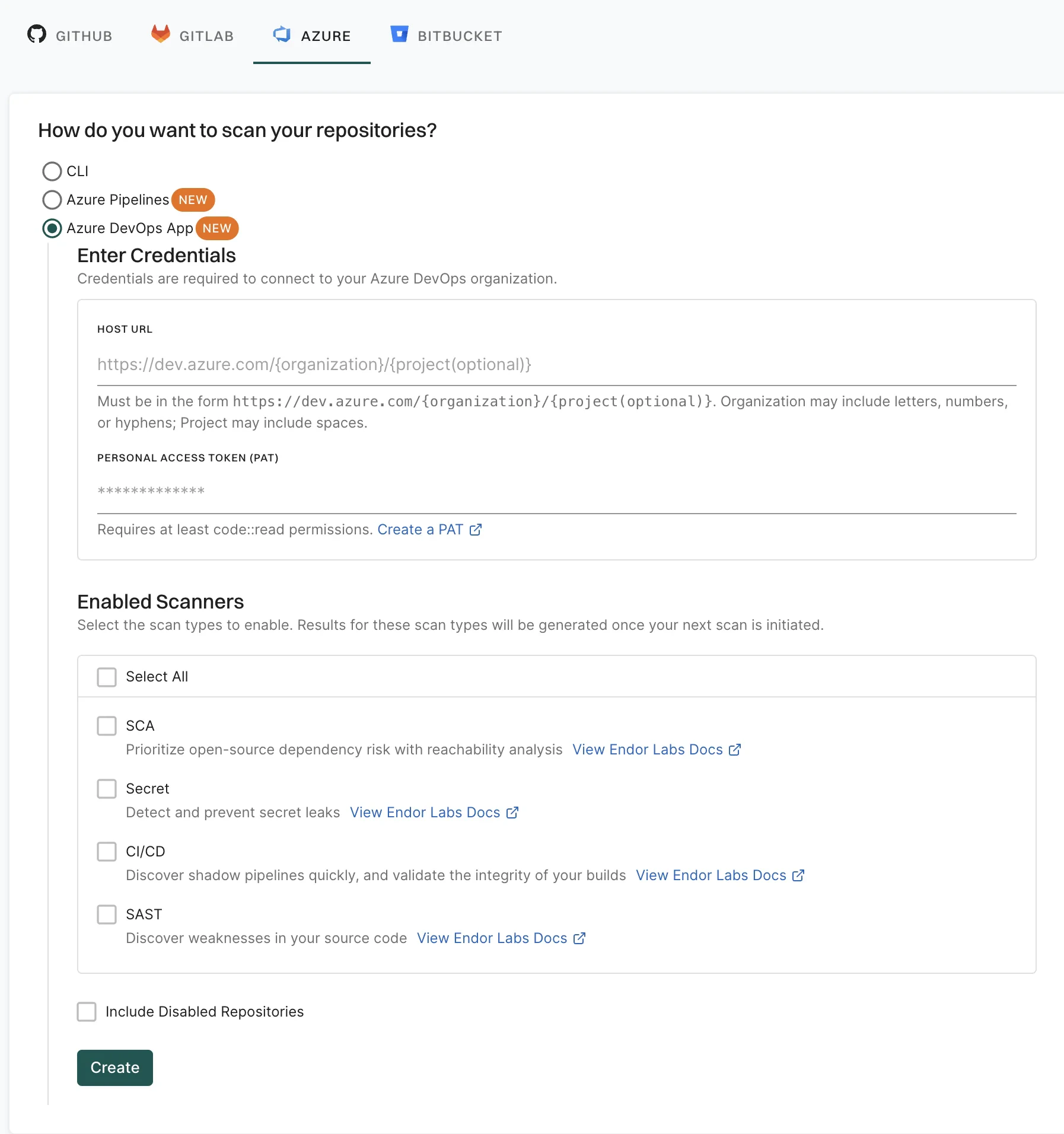
From AZURE, select Azure DevOps App.
-
Enter the host URL of your Azure project.
The URL must be in the format,
https://dev.azure.com/<ORG_NAME>/when you add an Azure organization. When you add an Azure DevOps project, the URL must be in the format,https://dev.azure.com/<ORG_NAME>/<PROJECT_NAME>. - Enter your personal access token from Azure. You must have at least read permissions in the Code category for your Azure DevOps personal access token.
-
Click Scanners and select the scan types to enable.
- SCA: Perform software composition analysis and discover AI models used in your repository.
- Secret: Scan Azure repos for exposed secrets.
- SAST: Scan your source code for weakness and generate SAST findings.
- Select Include Disabled Repositories to scan your archived repositories. By default, the Azure archived repositories aren’t scanned.
- Click Create.
Only users with admin authorization role can create and manage installations.