Create incoming webhooks in Slack
Create an incoming webhook to your Slack channel to enable Endor Labs to post notifications in the channel. The Incoming Webhook provides a unique URL to integrate your Slack channel in Endor Labs.We recommend you designate a channel in your Slack workspace for receiving Endor Labs notifications and create an incoming webhook for that channel.
- Create a Slack app for Endor Labs or use an existing app.
- Click Create New App.
- Choose From Scratch and Enter a name for the app, for example, Endor Labs.
- Select your workspace and click Create App
- You can enter basic, install, or display information for your Endor Labs app in Slack.
- In Display Information, you can upload a logo and customize App colours to distinguish the Endor Labs App on the Slack workspace.
- Click Save Changes.
- Navigate to Features, select Incoming Webhooks, and toggle Activate Incoming Webhooks.
- Refresh the page and click Add New Webhook to Workspace.
- Select a channel to receive Endor Labs findings in Post to, then select Authorize. If you need to add the incoming webhook to a private channel, you must first be in that channel.
- From Settings, copy the webhook URL under Webhook URLs for Your Workspace. Keep this URL handy to enter in Endor Labs.
Configure Slack integration
To configure Slack integration, follow these steps:- Sign in to Endor Labs and click Integrations from the left sidebar.
- Navigate to Slack under Notifications and click Add.
- Click Add Notification Integration.
- Specify a name and description for this integration.
- Enter webhook URL copied from Slack in Incoming Webhook.
- Click Add Notification Integration.
Associate an action policy with a Slack notification
Users can create action policies to send a Slack notification when the conditions of a given policy are met. For example, if there is a critical or high vulnerability, send the findings to Slack. While creating an action policy, configure the following settings:- Select Choose an Action as Send Notification.
- From SELECT NOTIFICATION TARGETS, choose the Slack integration notification that you created.
-
Choose an Aggregation type for notifications.
- Choose None (Notify for each Finding) to trigger a separate message for each finding.
- Choose Project to group and send all the findings related to a project in one message.
- Choose Dependency to send individual messages for every dependency.
- Choose Dependency per package version to send individual messages for every unique combination of dependency and package version.
- From Assign Scope, include the project tags in INCLUSIONS to apply this policy to a project.
Manage Slack notification targets in Endor Labs
You can view and manage the Endor Labs Slack notification targets created for a project.- From the sidebar, navigate to Manage > Notifications.
- Under Notifications, click Manage for Slack. You can view all your created notification targets for Slack.
- To edit a notification target, click the vertical ellipsis and choose Edit Notification Integration.
- To delete a notification target, click the vertical ellipsis dots and choose Delete Notification Integration.
Customize Slack notification templates
Endor Labs provides a default standard template with standard information that will be included in the Slack message. You can use the default template or you can choose to edit and customize this template to fit your organization’s specific requirements. You can also create custom templates using Go Templates.- Sign in to Endor Labs and select Integrations from the left sidebar.
- Look for Slack under Notifications.
- Click Manage to view the list of configured notification integrations.
- Choose one and click the ellipsis on the right side, and click Edit Template.
- Make required changes to any of the following templates and click Save Template.
- Open - This template is used when new notifications are raised.
- Update - This template is used when an existing notification is updated, such as, when some findings for the notification are changed.
- Click Restore to Default to revert the changes.
- Use the download icon on the top right corner to download this template.
- Use the copy icon to copy the information in the template.
Data model
To create custom templates for Slack messages, you must understand the data supplied to the template. See the protobuf specificationNotificationData message used for the templates.
To understand Project, Finding, PackageVersion, and RepositoryVersion definitions used in this protobuf specification, see:
- Project resource kind
- Finding resource kind
- PackageVersion resource kind
- RepositoryVersion resource kind
Run a scan
Run the endorctl scan on your configured projects. See endorctl scan commands for more information.View notifications in Slack
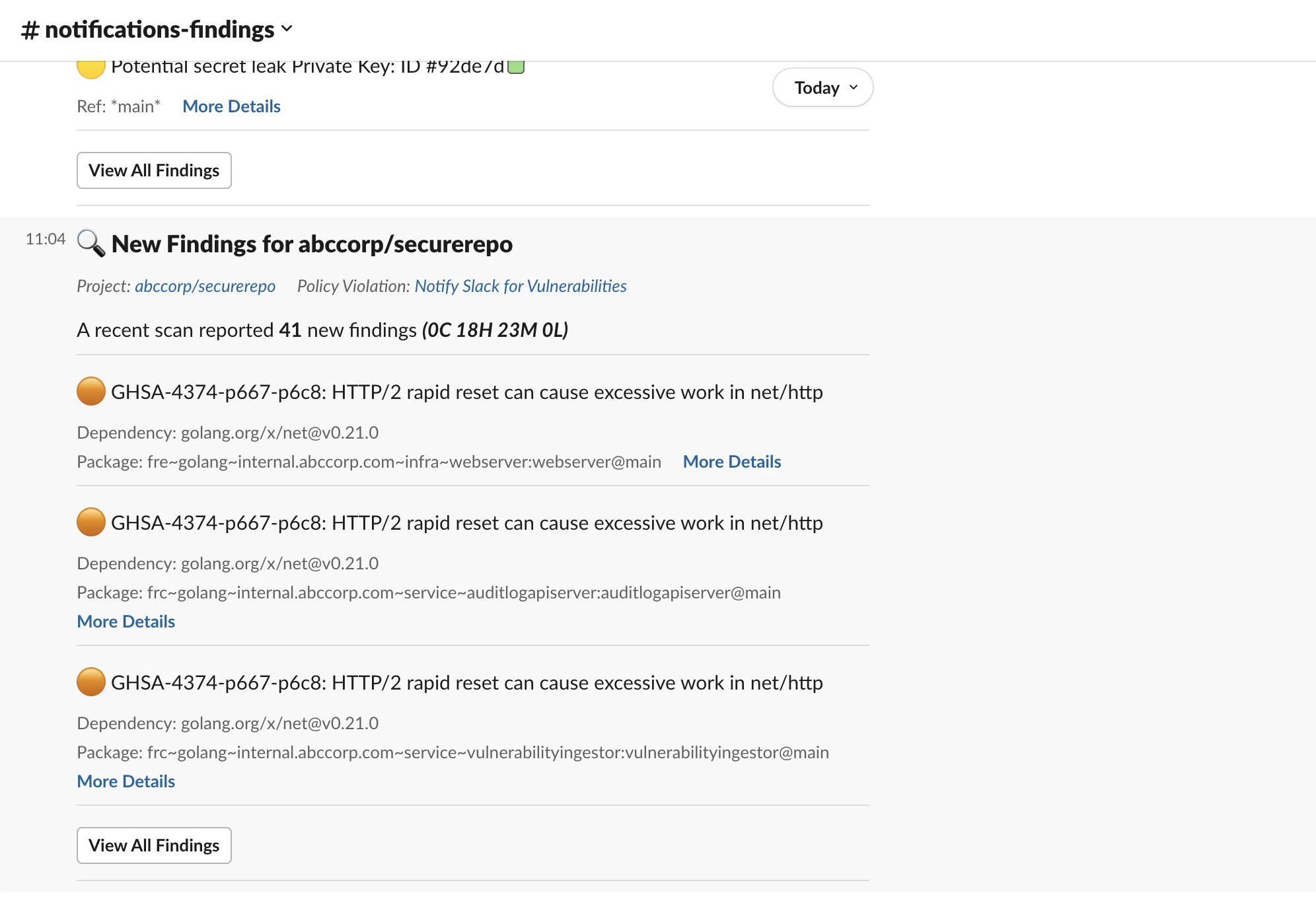
View Endor Labs’ findings in Slack and take remedial actions.- Sign in to Slack and view the notifications on the configured channel.
- You can view the top 3 findings by their severity level. Click View All to see all the findings in Endor Labs.