- Enable Azure Managed Identity for the virtual machine in the Azure Portal.
- Configure the Azure virtual machine.
- Create an authorization policy in Endor Labs.
Enable Azure managed identity
You must enable Azure Managed Identity for your virtual machine from the Azure portal. For more information, refer to Azure managed identity.Configure the Azure virtual machine
You need to configure the Azure virtual machine with endorctl and configure endorctl to use Azure Managed Identify.Verify the connection to the Azure virtual machine instance
Log in to your Azure virtual machine and run the following command.Download endorctl on the virtual machine instance
Download and install the latest version of endorctl in your virtual machine. See endorctl for the various methods available to install endorctl. The following example shows how you can download the endorctl binary directly.Set the environment variable
Set the environment variableENDOR_AZURE_CREDENTIALS_MANAGED_IDENTITY_ENABLE to true in your virtual machine instance.
true.
Create an authorization policy in Endor Labs
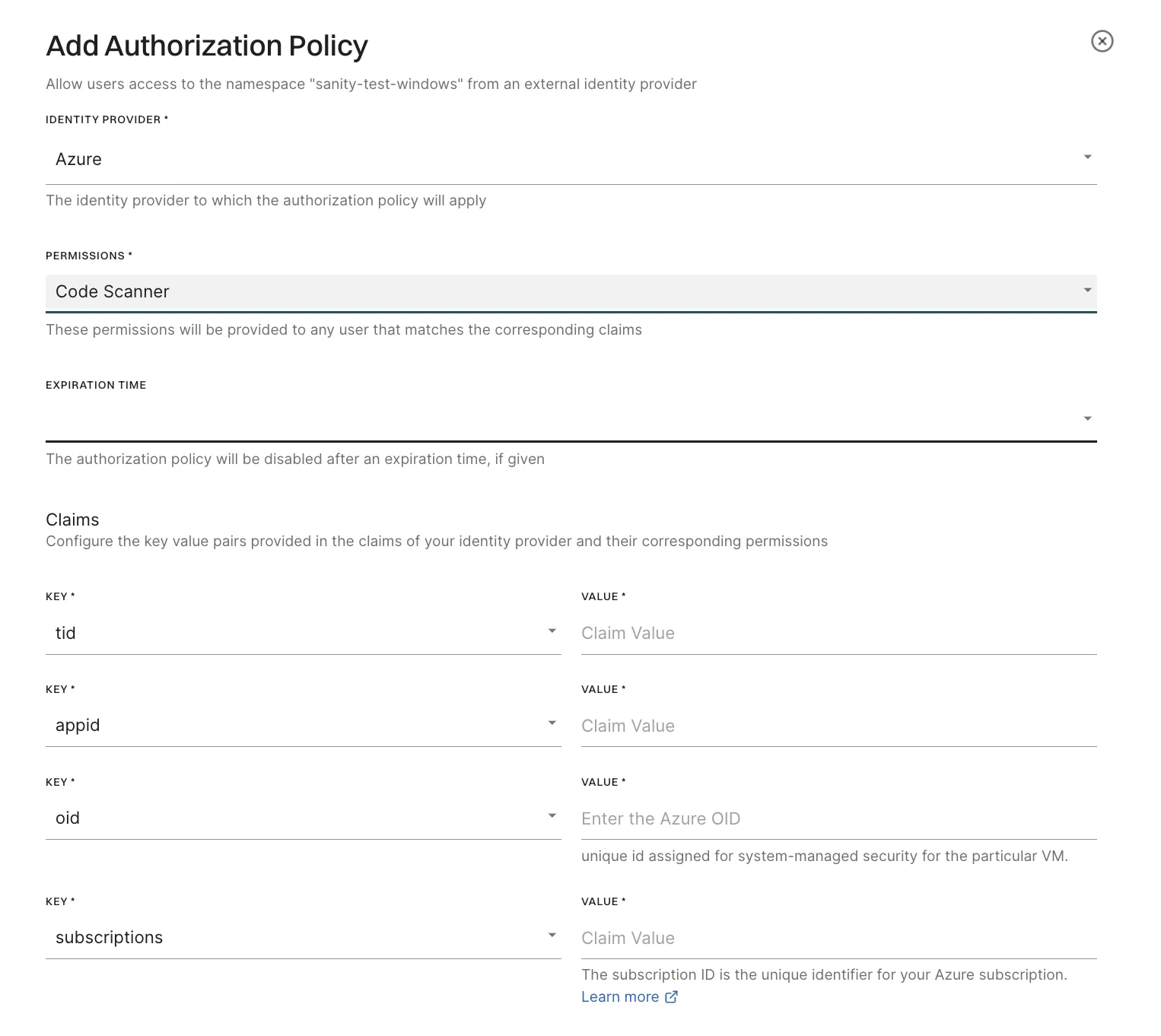
Create an authorization policy for Azure in the Endor Labs user interface. See set up authorization policy for more information on creation an authorization policy. Choose the following parameters when you create the authorization policy.- Select Azure as the Identity Provider.
- Select Code Scanner in Permissions.
-
Enter the following values for the claims:
- Tenant ID: Identifies your Azure organization.
- App ID: Identifies the application requesting access.
- Object ID: Unique ID assigned to the virtual machine.
- Subscriptions: Azure subscriptions linked to the identity.