

- Integrity of container images and build artifacts: Using a cryptographic signature ensures that container images and other build artifacts are genuine and crafted by the organization. This adds an extra layer of security to the software supply chain, making sure that only authorized and unaltered items are scheduled for execution.
- Traces across workflows: Beyond just verification, the framework offers thorough traceability. Users can trace the roots of container images and build artifacts, navigating through workflows and environments. Complete traceability ensures transparency, enabling organizations to validate the entire lifecycle of their software, from creation to deployment.
- Certificate validity: Endor Labs uses a short-lived certificate with a validity period of 5 minutes to ensure that the build artifact has been signed during this time frame. To further guarantee the signing occurred within the valid window, a timestamp is added alongside the certificate and signature, confirming the signing within the specified time frame.
Sign artifacts
You can sign artifacts using GitHub Actions or with endorctl.Sign using GitHub Action
Use the Endor Labs GitHub Actions to sign artifacts.- Set up authentication to Endor Labs.
- (Recommended) If you are using GitHub Action keyless authentication, set an authorization policy in Endor Labs to allow your organization or repository to authenticate. See Keyless Authentication for more information.
- Alternatively, authenticate with a GCP service account setup for keyless authentication from GitHub Actions or an Endor Labs API key added as a repository secret.
- Checkout your code.
- Install your build toolchain.
- Build your code.
- Sign your artifacts with Endor Labs.
endorlabs/github-action/sign to sign your artifacts. Set the following input parameters.
See the following example workflows to sign an artifact.
Sign using endorctl
Use theendorctl CLI to sign an artifact. Ensure you have downloaded the latest endorctl binary.
To sign an artifact, run the following command.
endorctl artifact sign command to include provenance information in your signed artifacts.
Provenance information in signed artifacts
The signed artifacts contain provenance metadata that describe the origin, history, and ownership of an artifact throughout its lifecycle. Including this information in signed artifacts enhances transparency, trustworthiness, and accountability. The following provenance information is included in the signed artifacts.Understand the signing process
When you run theendorctl artifact sign <image> command, Endor Labs initiates the following processes:
- Authentication: Initiates regular authentication and retrieves a token from the OIDC or workflow provider while using an authentication option such as
--enable-github-action-tokenor API keys. - Key Generation: Generates a public and private key using ECDSA-256.
- Certificate Request: Sends a certificate request to the private Certificate Authority to obtain a short-lived certificate.
- Provenance Inclusion: Incorporates provenance information from the token (if available) or provided with the CLI, adding it as a set of extensions to the certificate using ASN.1 encoding.
- Image Signing: Uses the private key to actively sign the image.
- Certificate Storage: Stores the certificate containing provenance information along with the signature in the database.
- Timestamp: Adds a timestamp of the signing event.
View the signed artifacts
To view the signed artifacts:- Sign in to Endor Labs and select Inventory from the left sidebar.
-
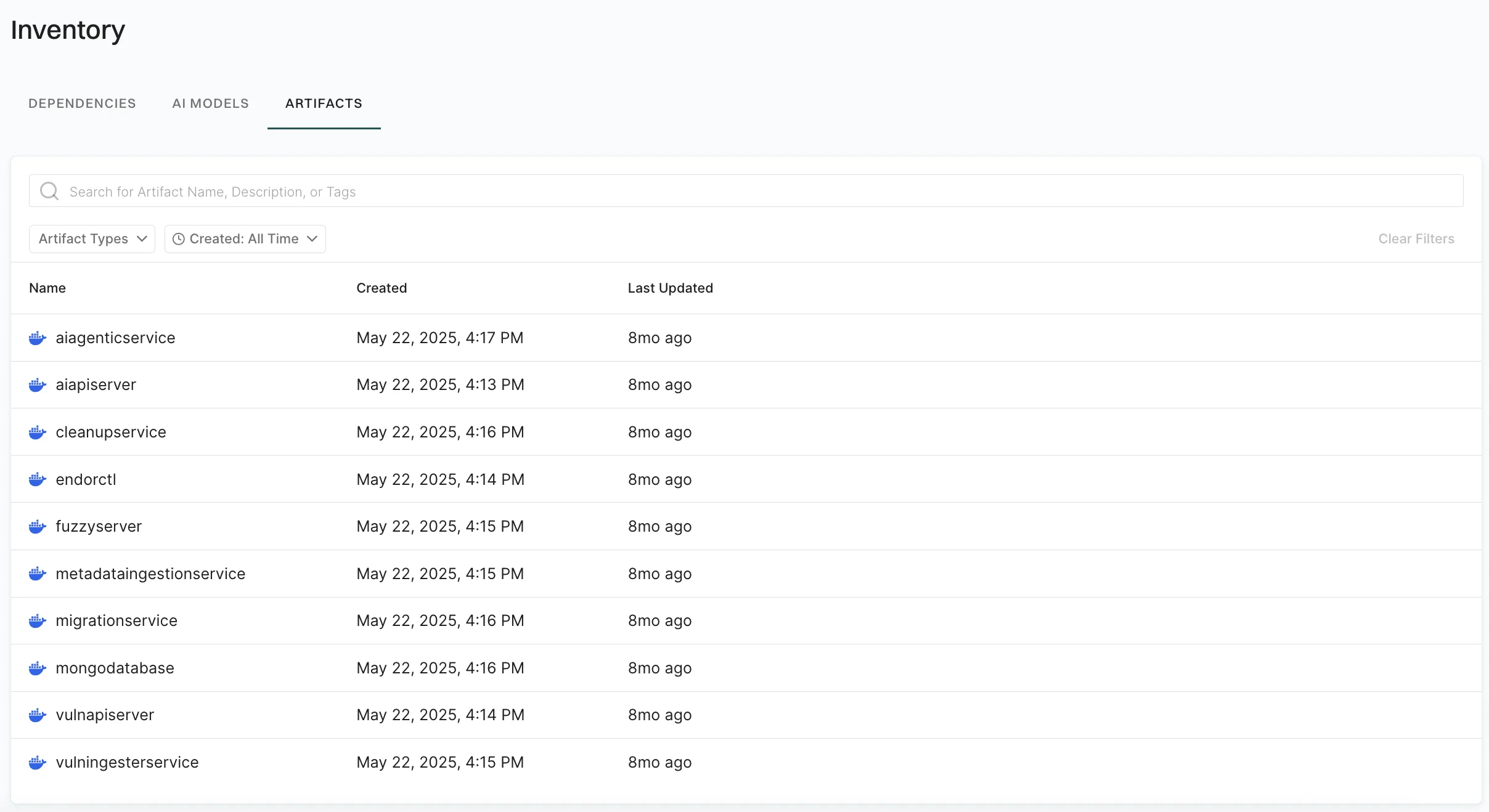
Select Artifacts. The list shows signed artifacts with Name, Created, and Last Updated details.
-
Use the search bar to find artifacts by name, description, or tags. You can use the following filters:
- Artifact Types: Filter by artifact type, for example container image.
- Created: Filter by when the artifact was created.
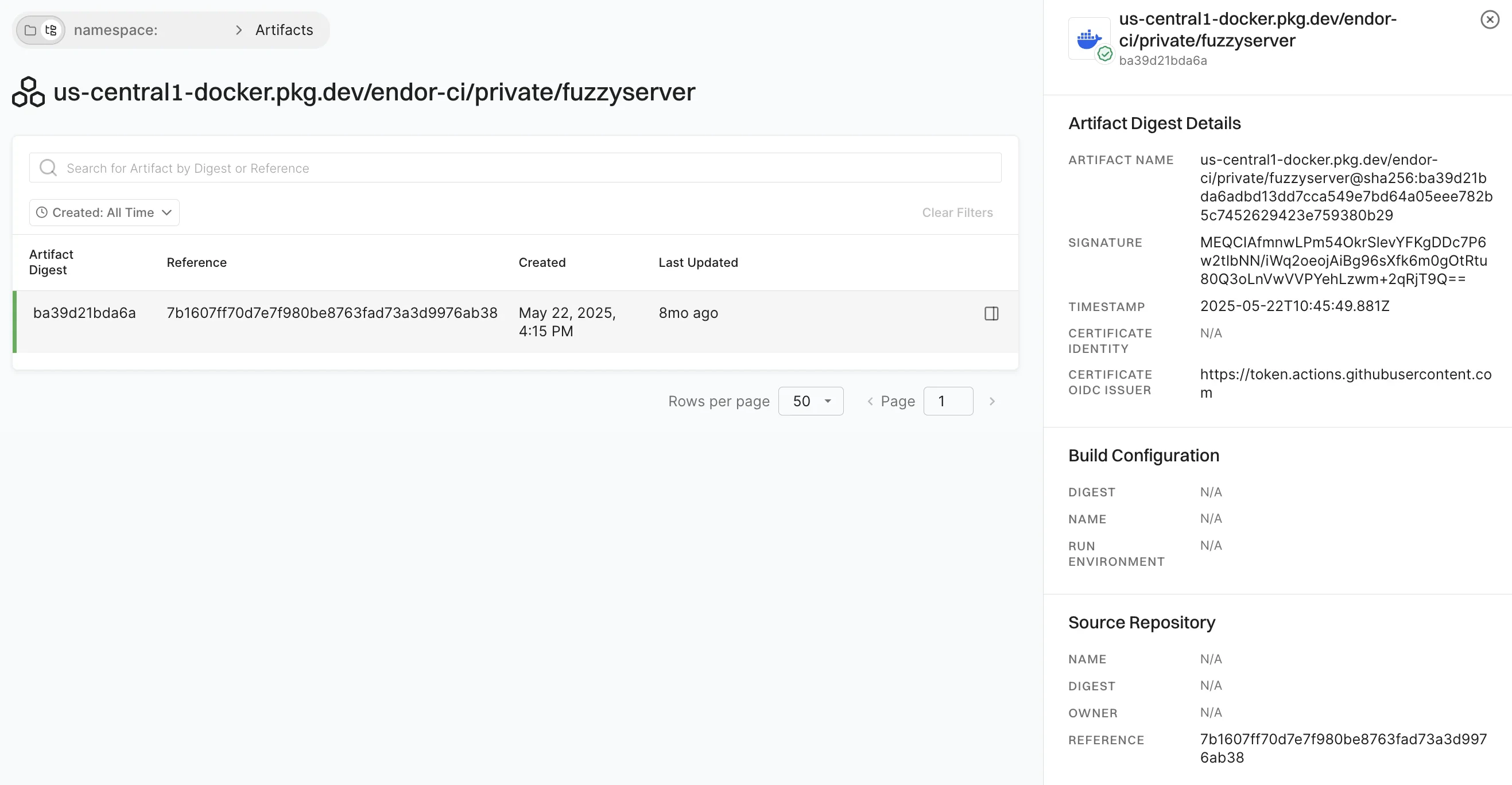
- Select an artifact to see its signed artifact digests in the list and provenance information. The list shows Artifact Digest, Reference, Created, and Last Updated for each digest.
-
Select an artifact digest to open Artifact Digest Details and view the metadata, signature and certificate details, build configuration, and source repository information.
Verify artifacts
You can verify artifacts using GitHub Actions or with endorctl.Verify using GitHub Action
Use the Endor Labs GitHub Actions to verify signed artifacts in your CI pipeline. Use the GitHub Actionendorlabs/github-action/verify to verify your artifacts. Set the following input parameters.
See the following example workflow to verify a signed artifact.
Verify using endorctl
To verify a signed artifact, use the following command:endorctl artifact verify:
Understand the verification process
When you run theendorctl artifact verify --name <artifact> --certificate-oidc-issuer string command, Endor Labs initiates the following verification processes:
- Authentication: Initiates regular authentication and retrieves a token from the OIDC or workflow provider while using an authentication option such as
--enable-github-action-tokenor API keys. - Signature Retrieval: Retrieves a signature entry from the database using the artifact name.
- If the entry is not found, the verification process fails.
- Certificate Authority Check: Checks for a trusted Certificate Authority.
- Image Signature Validation: Validates the image signature using the public key from the certificate.
- Timestamp Validation: Validates that the timestamp in the signature entry is within the certificate’s validity.
- OIDC Issuer Verification: Checks whether the issuer provided matches the contents of the certificate.
- Provenance Verification: Ensures that any provenance information from the CLI matches the ones in the certificate.
Revoke the artifact signature
You can revoke a signature of a signed artifact for reasons such as a precautionary measure to safeguard against security risks, to maintain compliance, or to uphold trust and integrity. To revoke a signature linked to an artifact and prevent its usage, use the following command:endorctl artifact revoke-signature:
Revoking the artifact signature invalidates the corresponding database entry and ensures that any attempts to verify the signature will fail.
Best practices
- While specifying the artifact name during the signing process, for the container images, adhere to the structure
registry.example.com/repository/image@sha256:digest. - The signing process does not support tags. Ensure that you specify a SHA256 digest with the artifact you are signing to represent a cryptographic hash of the image’s content. This ensures a unique digest is created for every minor alteration in the image.