

Important
Container scanning now has its own dedicated command:
Container scanning now has its own dedicated command:
endorctl container scan.The endorctl scan --container commands are deprecated and will be removed after a three-month deprecation period.Migrate to endorctl container scan command to ensure continued compatibility. For more details, see Container scan commands migration guide.- Operating system packages: Identifies packages installed through the container’s base operating system package manager.
- Programming language packages: Identifies packages installed through language-specific package managers.
- Libraries and dependencies: Identifies static and dynamic libraries, and runtime dependencies required by the application.
Verify access to container registries
If the container image is in a private Docker registry, you must authenticate the container client before the scan. Here are a few commands to authenticate the container client.Authenticate to a Docker registry
Authenticate to a Docker registry
Authenticate to a Podman registry
Authenticate to a Podman registry
Authenticate with containerd
Authenticate with containerd
You must configure the containerd config file to authenticate with the container registry.Learn more
Run the endorctl scan
Endor Labs supports the following methods of scanning container images:- Scan container images in a Git repository: Use this approach to scan images built within your repository using a Dockerfile.
- Scan container images as a standalone project: Use this approach to scan base or golden images that are shared across multiple repositories or applications.
- Scan container image tarball: Use this to scan images saved as tar files, such as base images exported from Docker, to generate dependency, SBOM, and vulnerability reports.
- Scan images from a container registry: Use this approach to list and scan images directly from a registry such as AWS ECR, Azure ACR, Docker Hub, GHCR, or JFrog Artifactory.
Scan container images in a Git repository
Run the following command to scan a container image built in a specific repository. Specify the project path using the--path argument and the container image name using the --image argument. This associates the container with the Git repository and branch of the project.
Scan container images as a standalone project
Run the following command to scan a container image from a registry. Specify the project name using the--project-name argument, and the container image name and tag using the --image argument.
--as-ref flag.
Important
To associate a container scan with an existing SCA scan for a project, you must use the
To associate a container scan with an existing SCA scan for a project, you must use the
--path argument specifying the same project path used for the SCA scan. You cannot associate a container scan with an SCA scan for a project using the --project-name parameter.Scan container image tarball
You can save a container image as a tarball and scan it with endorctl to generate a report containing dependencies, SBOM details, and security findings.-
Ensure that you have the container image available locally.
-
Export the image to a tarball file.
-
Perform the endorctl scan.
--image-tarmust point to the absolute path of the tarball file.--image=<name:tag>is optional but recommended. It explicitly identifies the container image inside the tarball.
Run container scan in CI pipelines
You can integrate container scanning into CI pipelines to automatically detect vulnerabilities and ensure the security of container images during the build and deployment process. To perform container scanning in CI pipelines using GitHub Actions, set thescan_container parameter to true in the GitHub Actions script. Additionally, you must provide the image parameter with the container image you want to scan.
See Performing scans in CI/CD pipelines for more information.
Understand container scan
Endor Labs fetches the container image from a container registry or loads it from a local file to scan containers. It then proceeds to extract the layers of the container image. It traverses the filesystem of each layer to identify files and directories. It looks for known package manager and metadata files to gather information about installed packages and their versions. It identifies various components and dependencies within the image and presents the findings in CLI and the Endor Labs user interface.Discover base images of containers
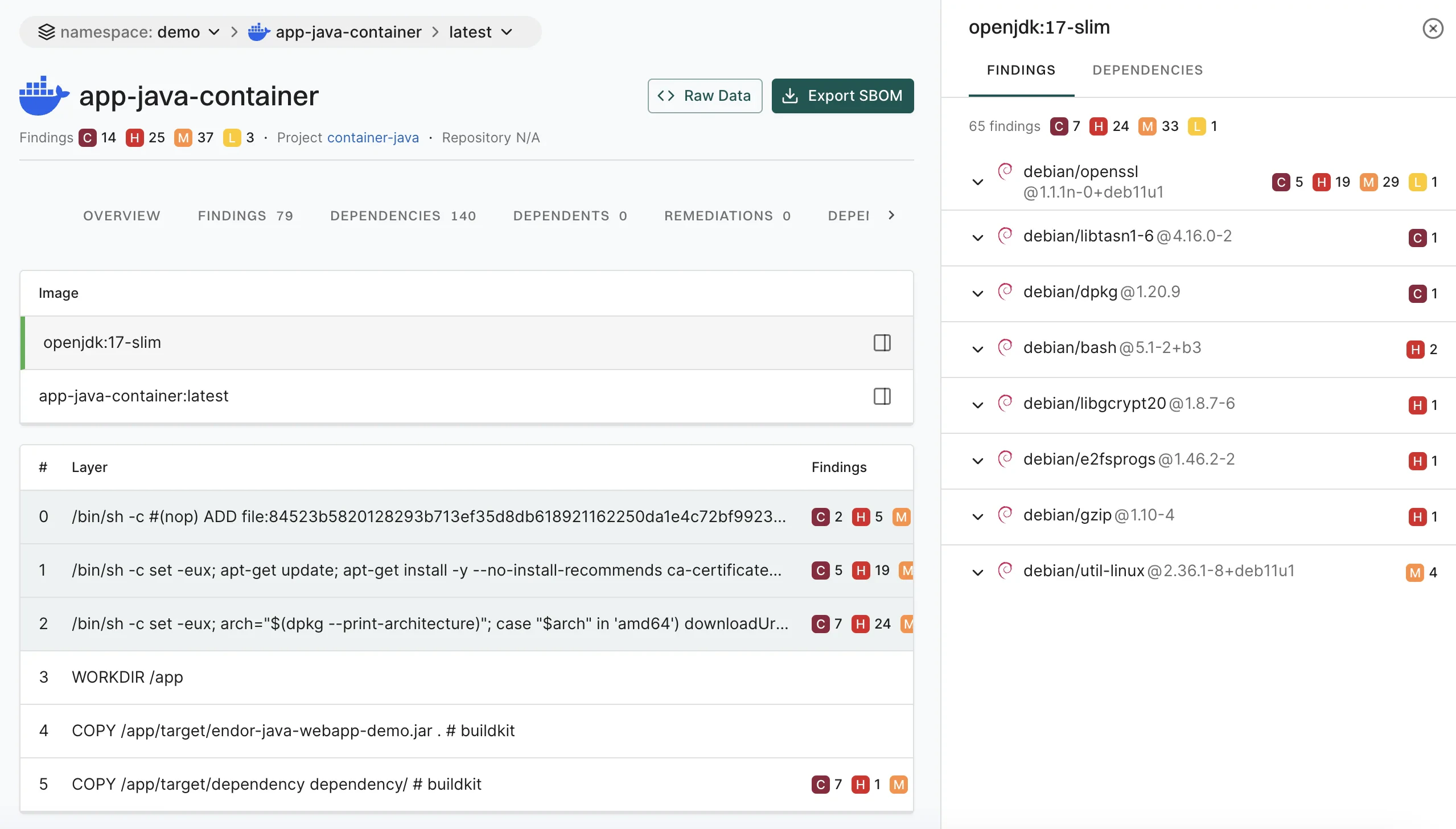
A container image is often built upon a base image that is a foundational layer including an operating system and other essential components. It’s crucial to understand what’s in the base image for a thorough security assessment. You can distinguish the base image related vulnerabilities from the application layer using any of the following methods:- Scan Sequence - First, scan the base image. Then, scan any subsequent images built on that base image to distinguish vulnerabilities specific to the base image from those introduced by the other layers.
- Docker file label - Set the label directly in your Dockerfile with a command such as
LABEL org.opencontainers.image.base.name="openjdk:17-slim". - Build time label - Include the base image label during the build process with the
--labelflag, specifying both the base image and, optionally, its exact version via SHA256 hash. For example:
Create finding policies for containers
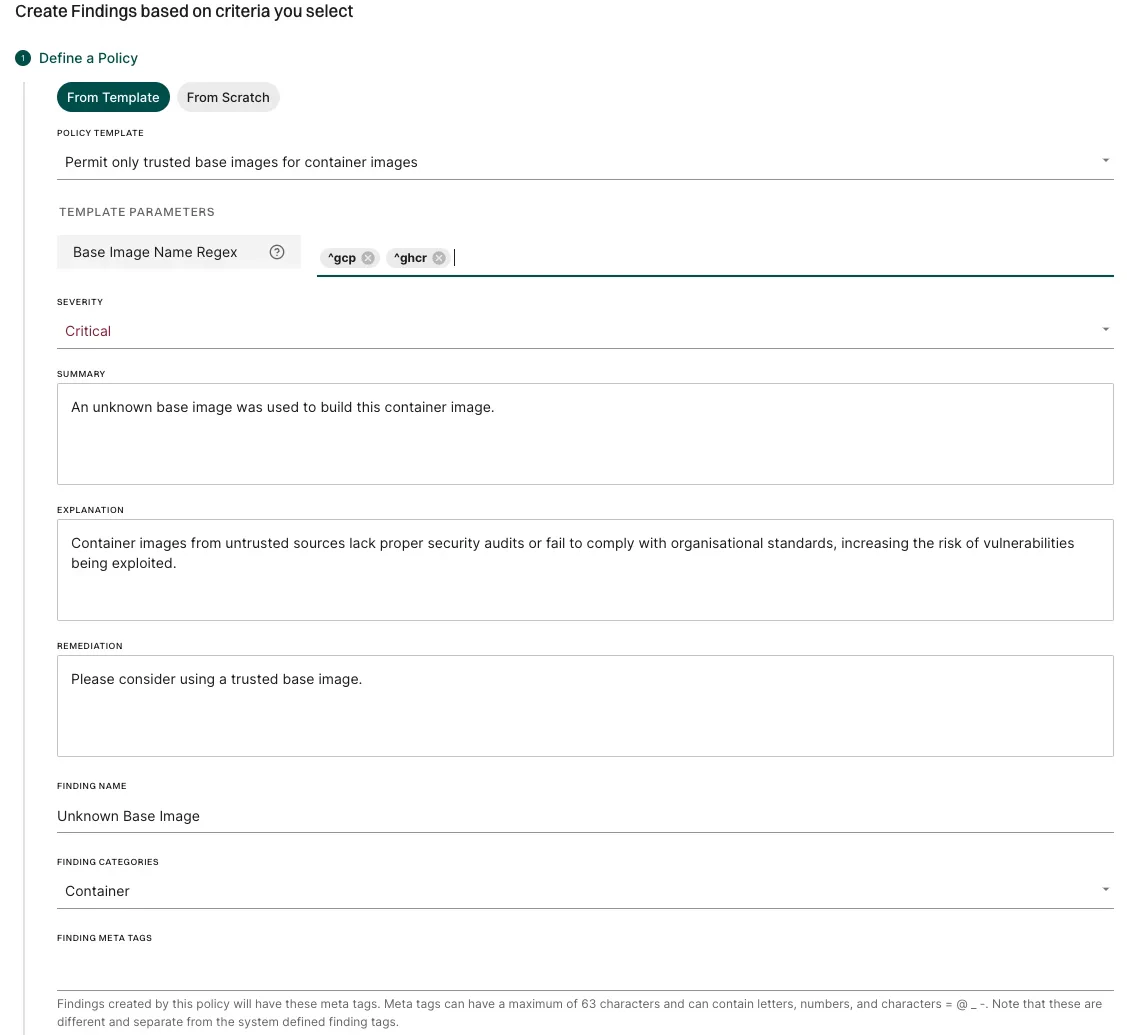
Container base images from untrusted sources may lack proper security audits or fail to comply with organizational standards, increasing the risk of vulnerabilities being exploited. To address this, you can configure a finding policy to detect unauthorised base images and raise a critical finding. For example, to allow only base images that start withgcp or ghcr, use the Container policy template and Specify Base Image Name Regex as ^gcp, ^ghcr.
See also Create a finding policy from template.
Supported languages and package managers
The dependencies associated with the following list of components are identified in the endorctl scan. Endor Labs recognizes only the installed dependencies. Declared but uninstalled dependencies in the container image are not recognized.View container findings
To view findings from the container scan:- Select Projects from the left sidebar.
-
Select the project for which you want to view the container findings.
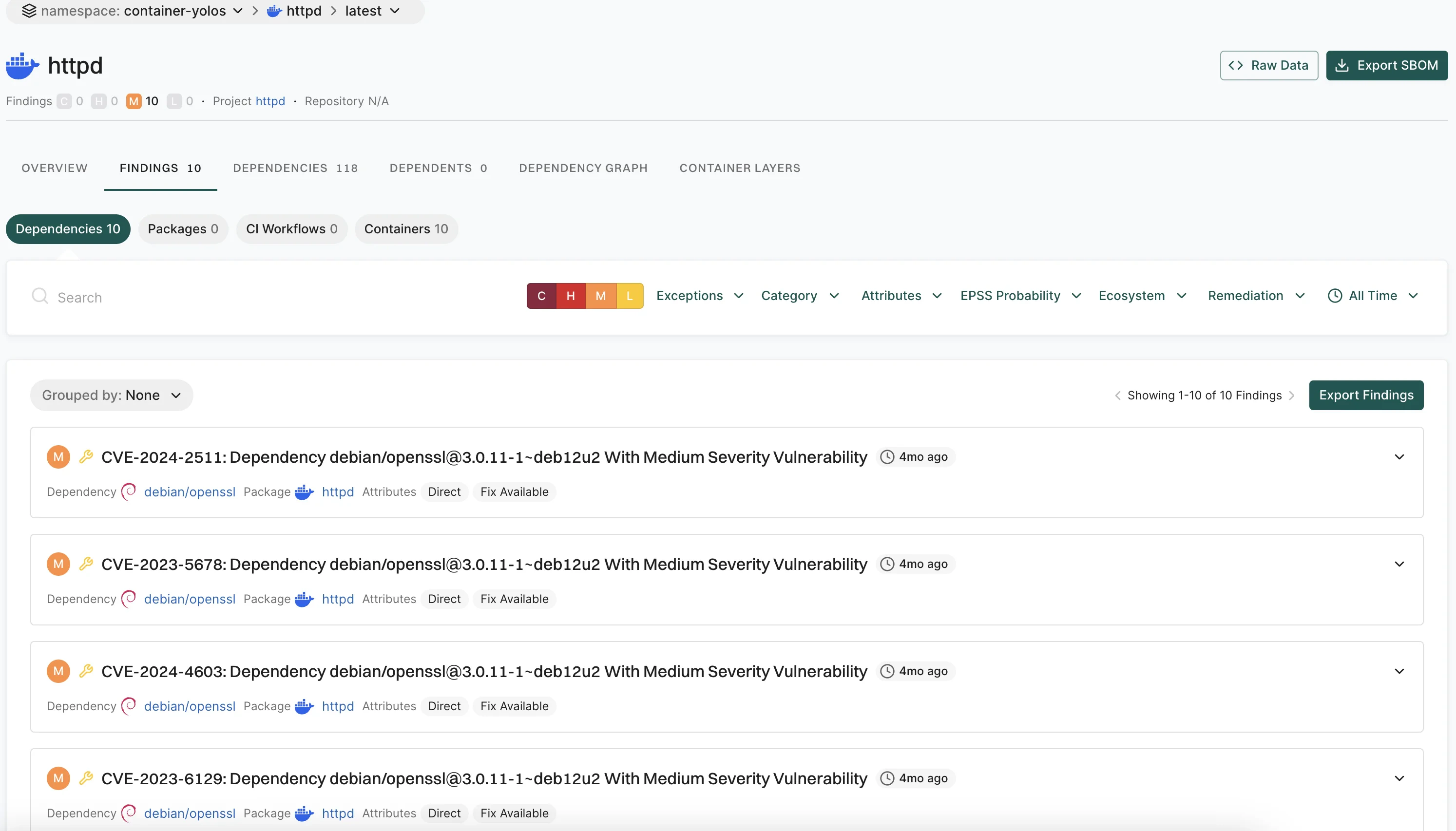
- Select Containers from the preset filters.
-
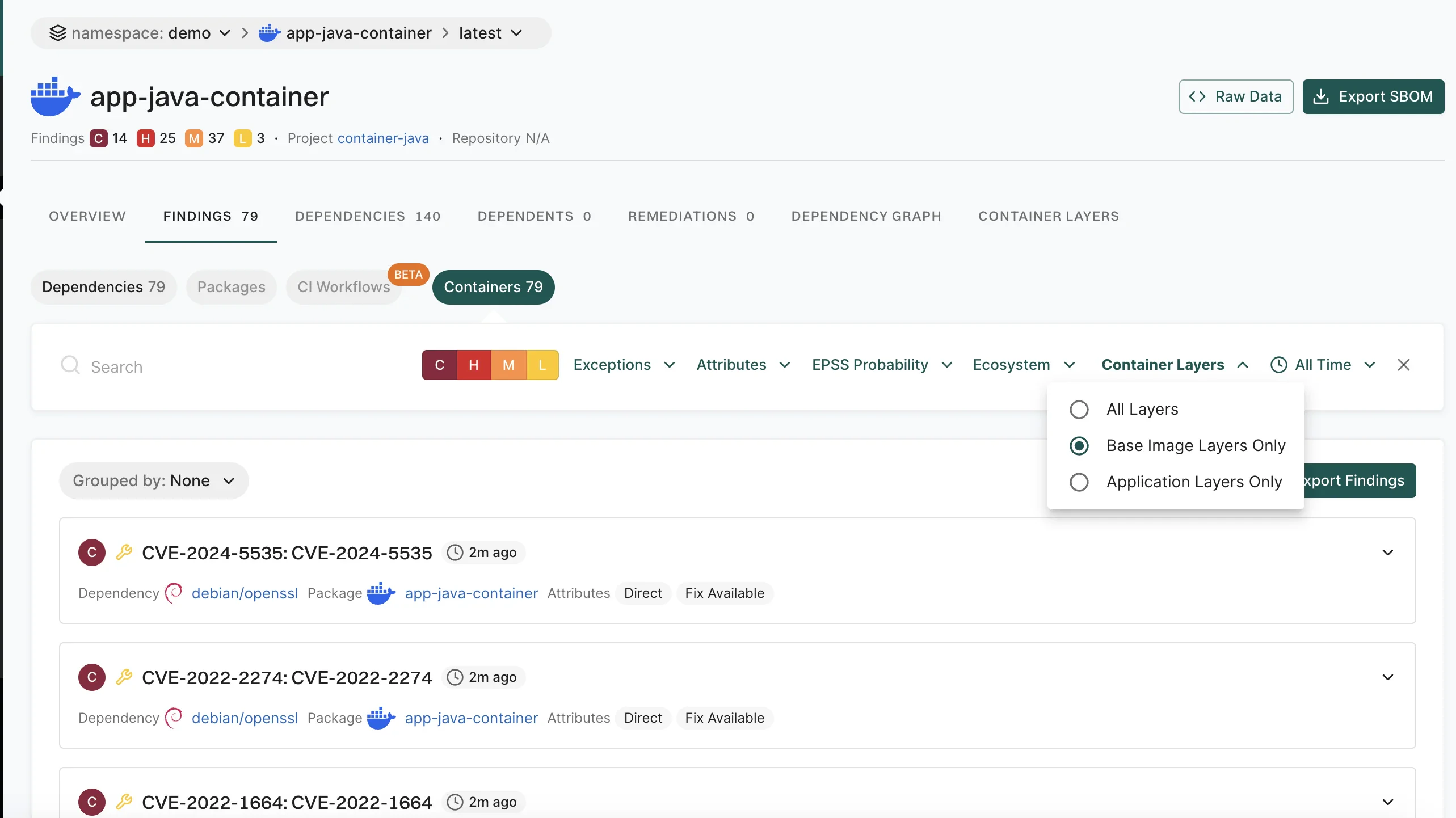
To view and filter dependencies based on the container images, click Container Layers and select to view All Layers, Base Image Layers Only, or Application Layers Only.
How Endor Labs derives container findings
Endor Labs’ container scanning results rely on OVAL feeds from distributions, which provide accurate, vetted vulnerability data, excluding disputed or irrelevant entries. OS dependency results are based on data from distribution developers, while for language package dependencies, we complement published data with our proprietary research. Endor Labs categorizes the severity of vulnerabilities detected in container scans as follows:- Use the severity assigned by the distribution, if it exists.
- Use the NVD severity if the distribution does not provide the severity.
- Report the vulnerability as
Mediumif there is no severity assigned by the distribution, or the NVD severity is not known or can’t be matched.
- Minor vulnerabilities in Debian and Ubuntu.
- Disputed vulnerabilities withdrawn from NVD.
Limitations of container findings
- Scanning Windows containers is not supported.
- Docker file scans are not currently supported.
- Support for scanning binary files inside a container is limited.
- Endor scores are not calculated for findings reported in the container scan.