

- Sign in to Endor Labs and select Integrations from the left sidebar.
- Click Manage next to Bitbucket Data Center under Source Control Managers.
-
Click the three vertical dots next to the integration.
You can choose from the following options:

Edit Bitbucket Data Center App integration
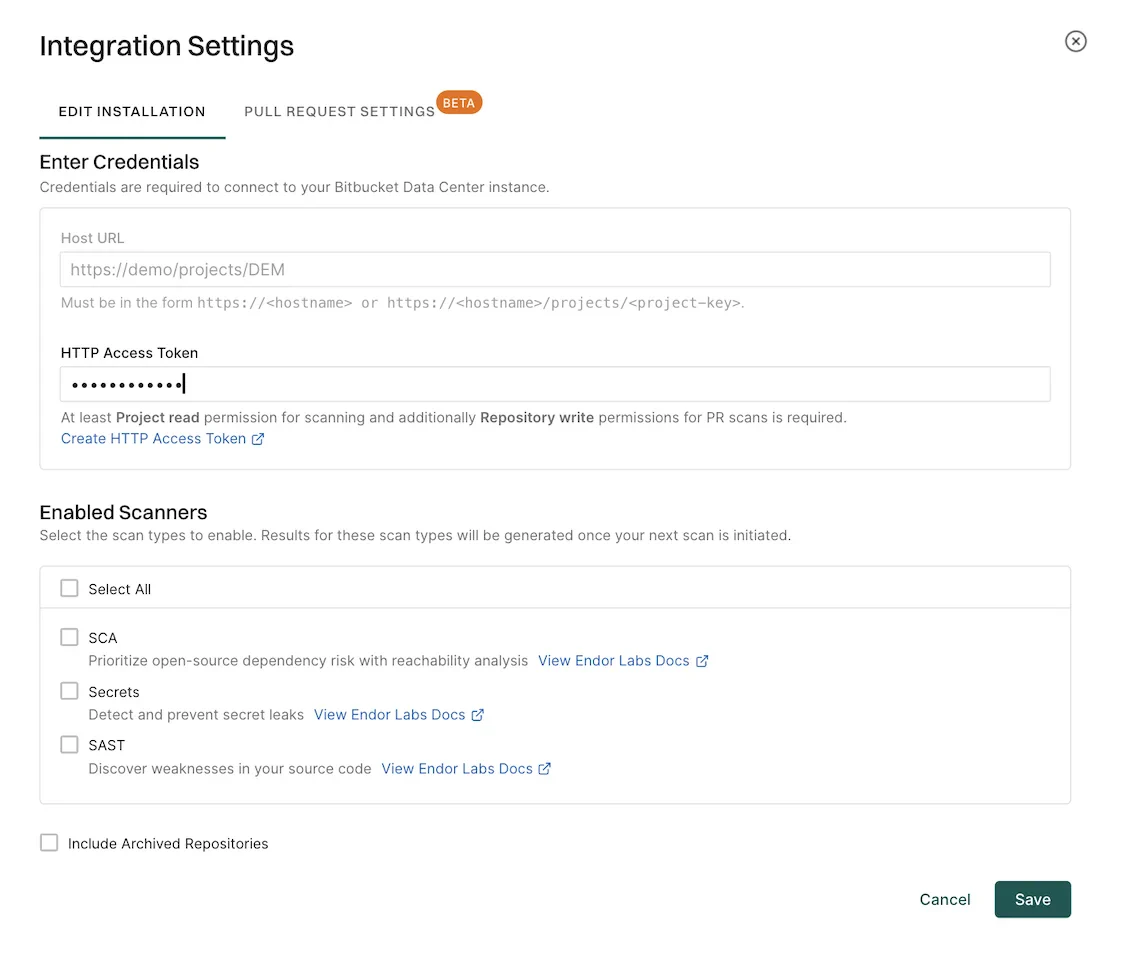
To edit the Bitbucket Data Center App integration:- Click the three vertical dots next to the integration, and select Edit Integration.
-
In EDIT INSTALLATION, you can update your access token, secret token, and choose the scanners.
-
Select Pull Request Settings to edit the PR scans configuration.
See Bitbucket Data Center App PR scans for more information.
Permissions for the HTTP access token
The HTTP access token must have at least write access for Repositories and read access for Projects. See Create an access token for more information. - Click Save. The changes are applied from the next scanning cycle.
Delete Endor Labs Bitbucket Data Center App
To delete a Bitbucket Data Center App integration, click the three vertical dots next to the integration, and select Delete Integration. You must also delete the webhook in Bitbucket Data Center after deleting the integration in Endor Labs. See delete webhooks in Bitbucket Data Center When you delete the integration, it also deletes all child namespaces, projects, and references associated with the auto-generated root group namespace. It also deletes any manually created namespaces and projects under auto-generated namespace. Delete the existing integration and create a new one in Endor Labs if you modify the Bitbucket Data Center project host URL.Delete configured webhooks in Bitbucket Data Center
After deleting the Bitbucket Data Center app in Endor Labs, ensure that all project-level webhooks created for Endor Labs are also removed in your Bitbucket Data Center instance. To delete a project-level webhook in Bitbucket Data Center:- Log in to your Bitbucket Data Center instance and navigate to your project.
- Select Project Settings from the left sidebar.
- Select Webhooks from the left sidebar.
- Locate the webhook created for Endor Labs.
- Click three dots under Actions and select Delete.
View sync logs
Endor Labs detects and reports installation and synchronization errors during organization sync. These include expired tokens, insufficient permissions, invalid host configurations, and certificate issues. Sync logs report those errors that you can resolve.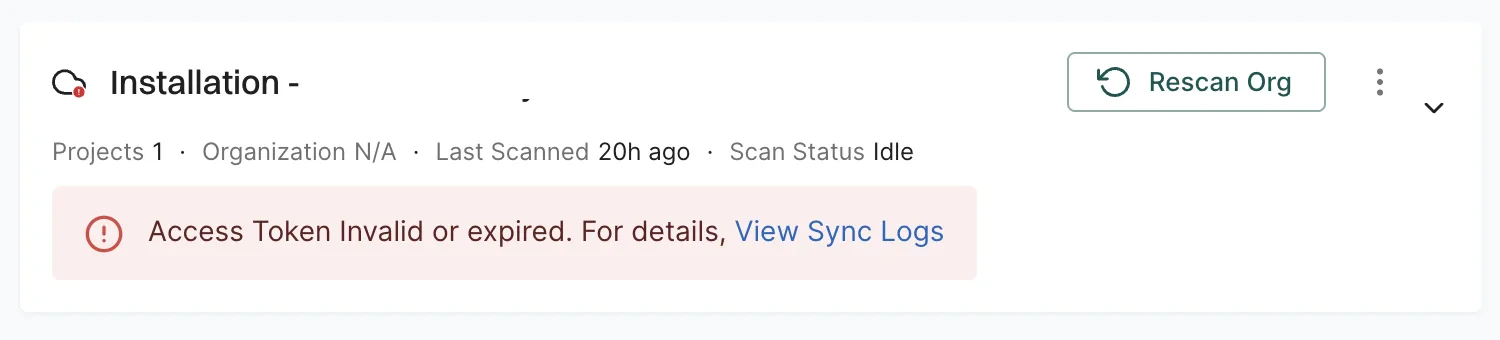
Types of errors
The sync logs detect and display the following categories of sync failures:- Expired or invalid Personal Access Tokens (PATs): The PAT used for authentication has expired or is no longer valid. Edit the integration and provide a valid token.
- Insufficient PAT permissions: The PAT does not have the required scopes, such as repository read access. You must generate and provide a PAT with the correct access.
- Certificate related access issues: The certificates required to connect to the SCM are invalid, outdated, or untrusted. This error occurs in self-hosted GitLab instances that use custom SSL certificates. Update the certificate configuration or ensure the certificate chain is properly trusted to resolve the issue.
- Incorrect or invalid host URLs: The configured URL is incorrect or unreachable. Since you cannot edit the host URL, you need to delete and reinstall the integration using the correct URL.