

Prerequisites
Ensure that you meet the following prerequisites before exporting data to S3:- An AWS account with permissions to create IAM roles, identity providers, and S3 buckets.
- An S3 bucket to store the exported data. See Create an S3 bucket.
- An OIDC identity provider configured to allow Endor Labs access. See Add an OIDC identity provider.
- An IAM role with permissions for Endor Labs to write to your S3 bucket. See Create an IAM role.
- Download and install endorctl. See Install endorctl.
Create an S3 bucket
An S3 bucket is a container for storing objects in Amazon S3. Each bucket has a globally unique name and is created in a specific AWS region. You can create a general purpose S3 bucket or reuse an existing bucket to store the exported data. Disable access control lists (ACLs) on the bucket to ensure that the access is managed through IAM policies and bucket policies, preventing unintended public access. Refer to Creating a bucket for detailed instructions on creating an S3 bucket.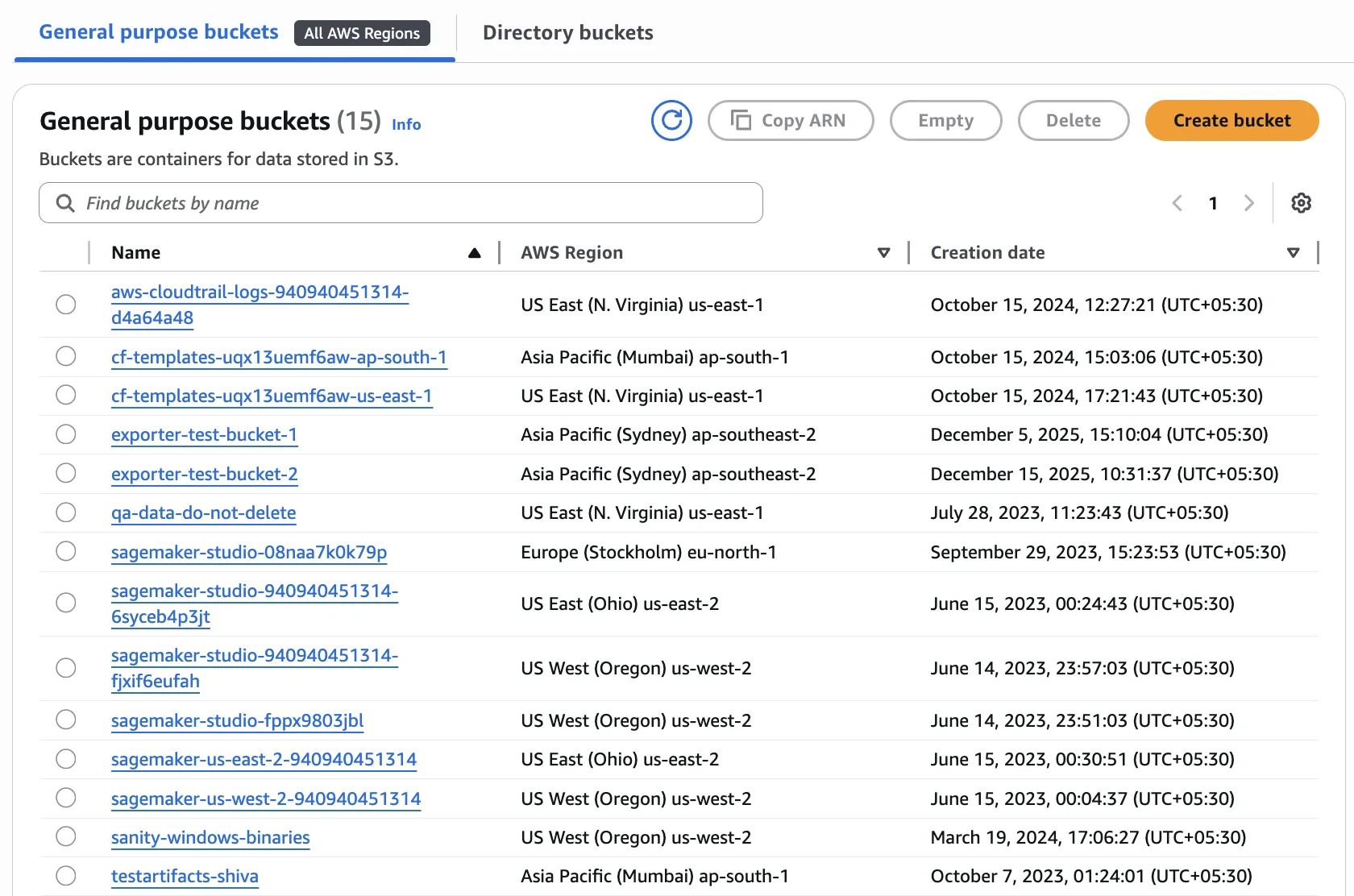
Configure bucket lifecycle
You can configure S3 lifecycle rules to automatically delete exported data after a specified retention period. Exported objects do not expire unless you configure lifecycle rules.- In the AWS management console, navigate to Amazon S3 > Buckets.
- Select your bucket.
- Select Management and click Create lifecycle rule.
- Enter a Lifecycle rule name, for example,
endor-exports-expiry. - Under Filter type, select Limit the scope of this rule using one or more filters and enter
endor/as the prefix to apply the rule only to exported data. - Under Lifecycle rule actions, select Expire current versions of objects.
- Under Expire current versions of objects, enter the number of days after which objects should be deleted.
- Review the rule and click Create rule.
Configure access for Endor Labs
Endor Labs uses OIDC federation to assume an IAM role in your AWS account to access the S3 bucket. To allow Endor Labs to write to the bucket, configure OIDC and IAM using one of the following methods:- Use the CFT template to create the OIDC identity provider, IAM role, and S3 write policy.
- Use the AWS Management console to create access by adding the OIDC identity provider and IAM role.
Create AWS resources using a CFT template
Use an AWS CloudFormation Template (CFT) to create the IAM role and S3PutObject policy for the S3 exporter. The template can create a new OIDC identity provider for Endor Labs or reuse an existing provider in your account.
The following table lists the parameters you can set when deploying the CFT template.
-
Create a
.cftfile with the following template. You can use the following template and set the parameters according to your OIDC audience, tenant namespace, bucket name, role name, and optionally an existing OIDC provider ARN. -
Save this file with an appropriate name such as
endorlabs-s3-export.cft. - Sign into AWS CloudFormation and search for Stacks.
- Click Create Stack and select With new resources.
- From Template source, select Upload a template file.
- Click Choose file, select the file you saved, and click Next.
- In Specify stack details, enter a Stack name, verify the Parameters you entered in the script and click Next.
- Select the acknowledgement from Configure stack options and click Next.
- From Review and Create, review the details and click Submit.
Create access through the Console
Create the OIDC identity provider and IAM role manually in the AWS Management Console.1. Add an OIDC identity provider
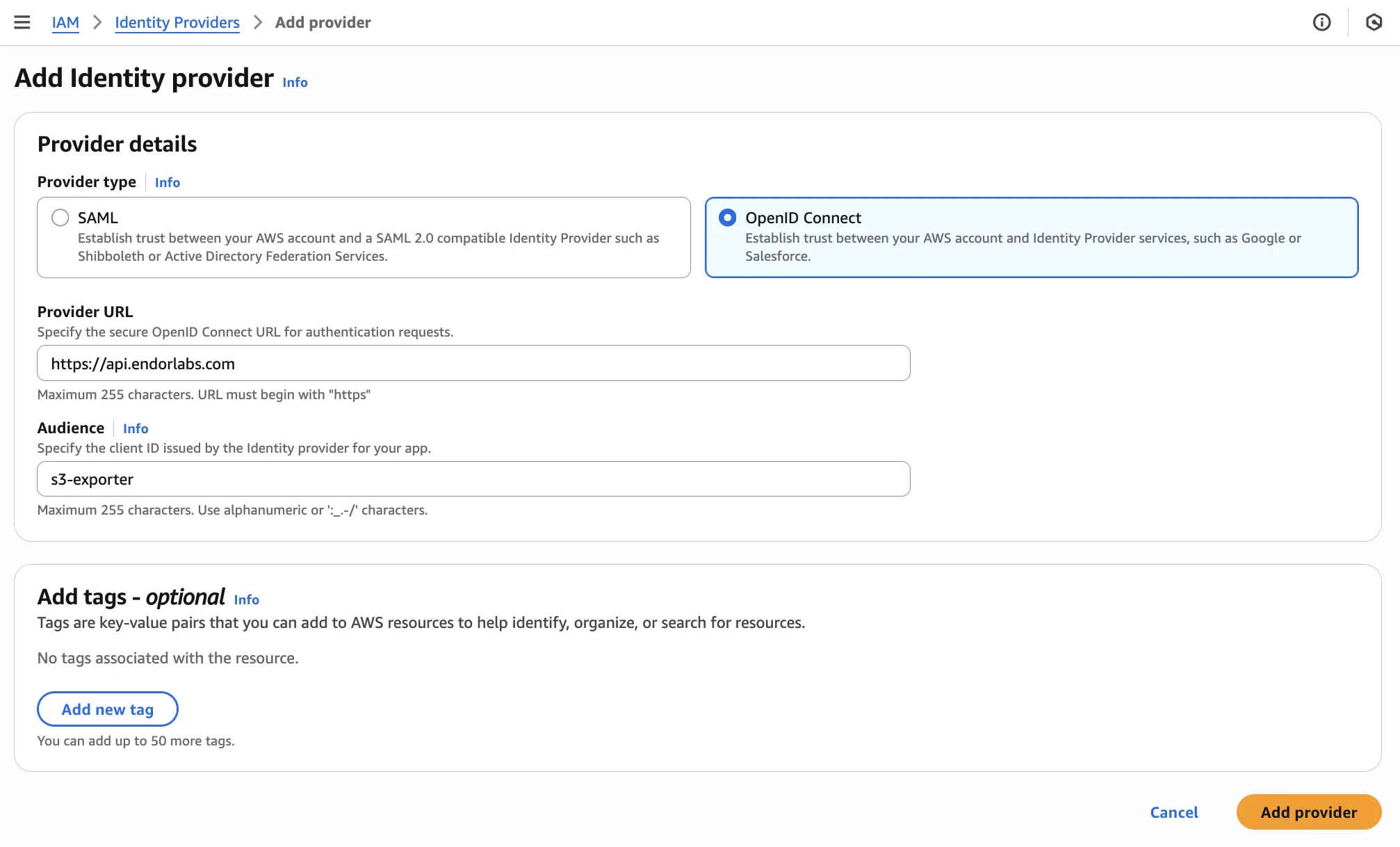
OpenID Connect (OIDC) federation allows Endor Labs to access AWS resources without requiring long-lived credentials. This reduces the risk of credential exposure and simplifies secret rotation.- In the AWS management console, navigate to IAM > Access Management > Identity providers.
- Click Add provider.
- Under Provider details, select OpenID Connect.
- For Provider URL, enter
https://api.endorlabs.com. - For Audience, specify a unique identifier to validate incoming OIDC tokens from Endor Labs.
- Optionally, add tags to help identify the provider.
- Click Add provider.
2. Create an IAM role
Create an IAM role that Endor Labs can assume to write to your S3 bucket. This involves:- Create a permissions policy: Define the S3 write permissions.
- Create an IAM role: Create a role with OIDC trust and attach the policy.
Create a permissions policy
- In the AWS management console, navigate to IAM > Access Management > Policies.
- Click Create policy.
- Under Specify permissions, toggle the Policy editor to JSON.
-
Enter the following policy:
Replace
<your-bucket-name>with the name of your S3 bucket. - Click Next.
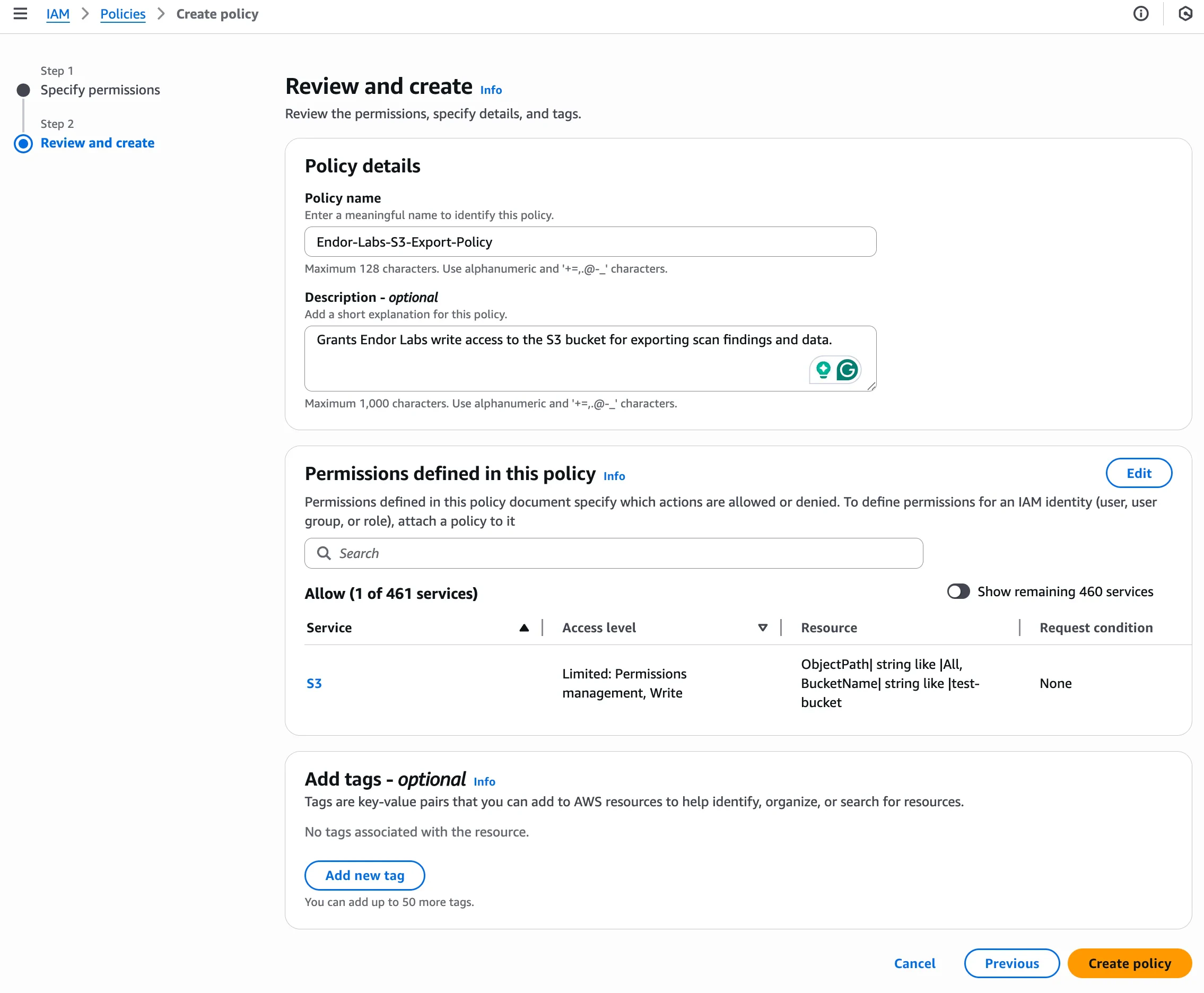
-
Under Review and create, enter a Policy name. For example,
EndorLabsS3ExportPolicy. - Review the Permissions defined in this policy section to confirm that the expected Amazon S3 write actions are included.
- Optionally, add a description and tags to your policy.
- Click Create policy.
Create an IAM role
- In the AWS management console, navigate to IAM > Access Management > Roles.
- Click Create role.
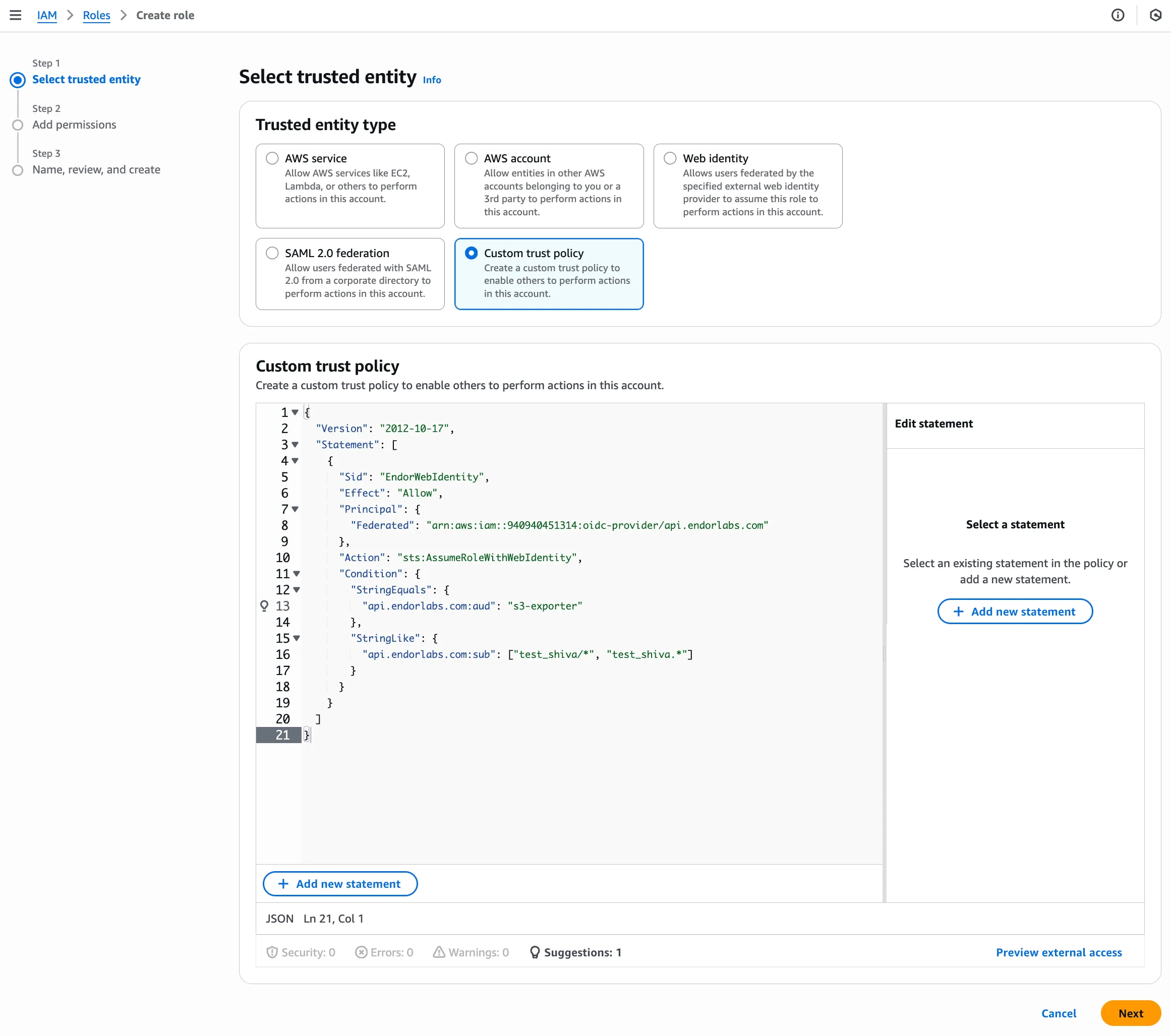
- Under Select trusted entity, select Custom trust policy.
- Enter the following trust policy:
Replace the placeholders with your values:
<aws-account-id>: Your AWS account ID<oidc-audience>: The audience value you configured in the OIDC provider<your-namespace>: Your Endor Labs namespace
- Click Next.
- Under Add permissions, search for and select the IAM policy you created.
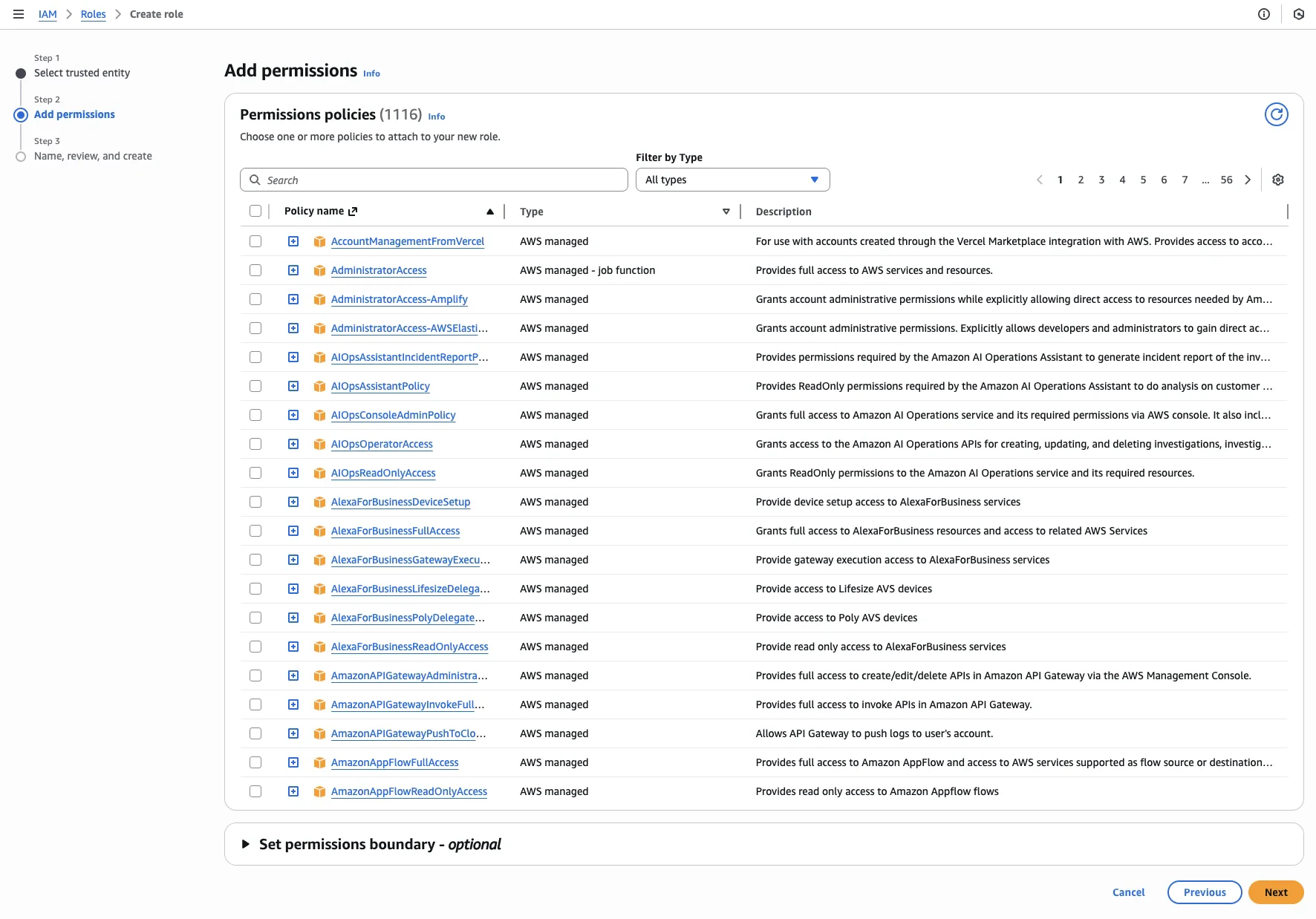
- Click Next.
- Under Name, review, and create, enter a Role name for the S3 exporter role. For example,
EndorLabsS3ExporterRole.
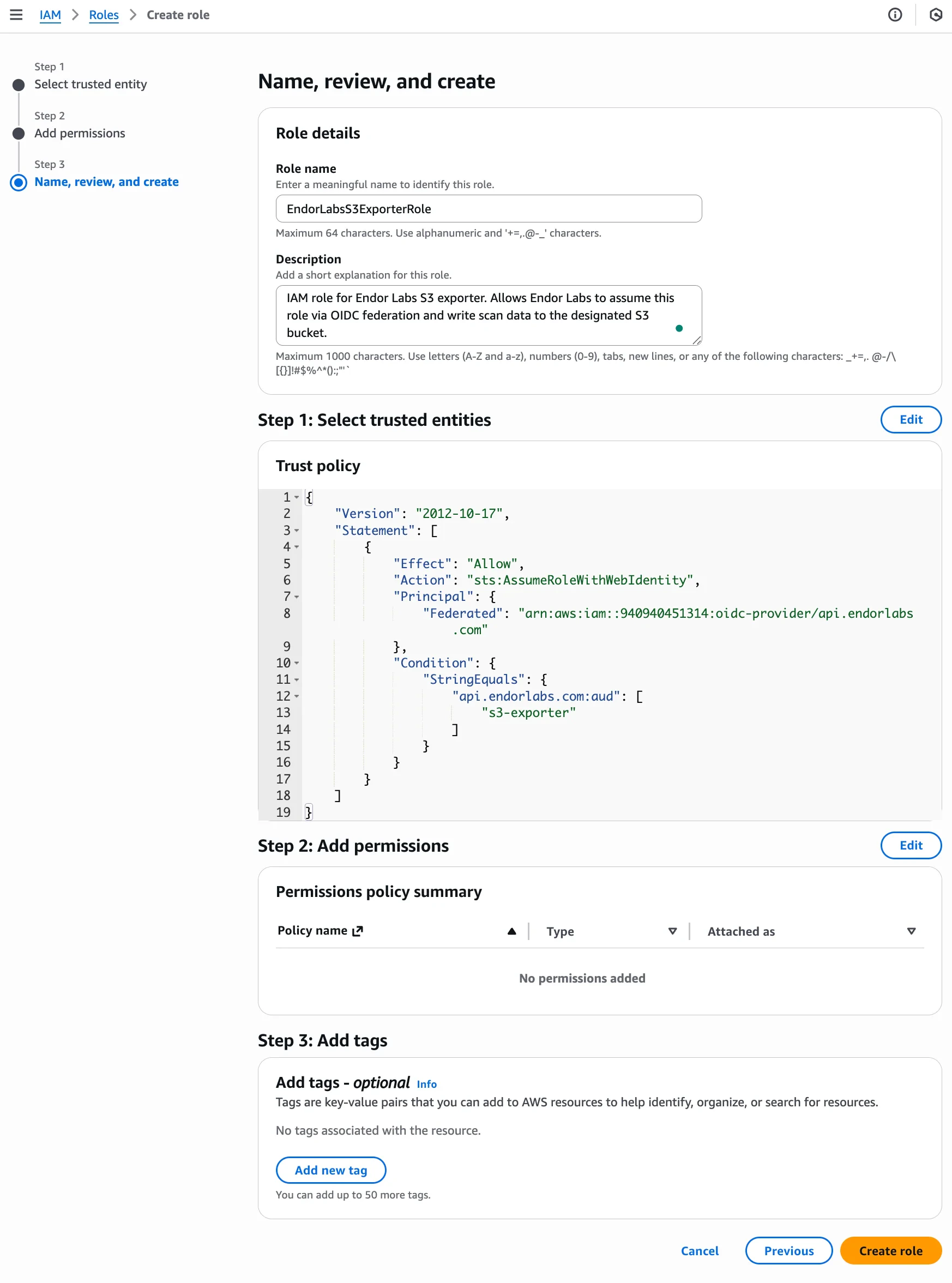
- Optionally, add tags to help identify the role.
- Click Create role.
Create an S3 exporter
Create an S3 exporter using the Endor Labs API to configure the export destination and data types. The following table lists the configuration options required to create the exporter. Run the following command to create an S3 exporter.s3-findings-exporter in the namespace doe.deer that exports findings in JSON format, run the following command.
Configure scan profile to use the S3 exporter
After creating the exporter, associate it with your scan profile. You can also set the scan profile as the default for your namespace so all projects use it automatically. See Scan profiles for more information.Configure the scan profile
- Select Settings from the left sidebar.
- Select Scan Profiles.
- Select the scan profile you want to configure and click Edit Scan Profile.
- Select your exporter under Exporters and click Save Scan Profile.
Configure the project to use the scan profile
Associate your project with a scan profile to enable automatic export of scan data.- Select Projects from the left sidebar and select the project you want to configure.
- Select Settings and select the scan profile you want to use under Scan Profile.
Scan projects to export data
After configuration, subsequent scans automatically export data to your S3 bucket. You can trigger a scan immediately using the rescan feature. See Rescan projects for more information. To validate that the S3 exporter ran successfully for a scan:- Select Projects from the left sidebar and select the project associated with your exporter.
- Select Scan History and select a record to view its information.
-
Select Logs to view the scan log and set the log level to All
The following message confirms that the S3 export is successful.
INFO: Successfully completed S3 export
Exported file structure
Endor Labs exports data to S3 using a hierarchical folder structure:Example file path
Manage the S3 exporter
You can list, update, and delete S3 exporters using the Endor Labs API.List exporters
List exporters
Run the following command to list all exporters in your namespace.
Update an exporter
Update an exporter
Run the following command to update an existing exporter. Use the
--field-mask parameter to specify the fields to update.Delete an exporter
Delete an exporter
You must disassociate the exporter from any linked scan profiles before deletion.